
Term Licensing
[row] [grid 6] Let’s get started on your upgrade process to Tungsten Power PDF 5 for your organization. To have an account manager reach out with a quote and instructions, simply fill out the form on this page. If you have an active maintenance plan with Tungsten Automation for your Power PDF Business Volume (Enterprise) licenses, your upgrade is free! We built Tungsten Power PDF Busiess Volume (for Enterprise) specifically to fit the needs of large and growing organizations like yours. Our solution makes it easy for you to create, edit and assemble documents across any platform or device, enabling internal and external workflow continuity. Improve your document processes and reclaim valuable time in every workday. Get a customized quote and cost comparison. Improved benefits with new Power PDF 5 Works like Office desktop products, so it’s easy to learn Meets simple to complex needs, enabling standardization on a single tool Includes industry standards for encryption, redaction and more Supports lossless PDF/A-4 archiving Fuzzy search helps uncover typos, incomplete information and non-exact matches of your query Browser extensions for Google Chrome and Microsoft Edge to open and create PDFs Fully integrated Tungsten SignDoc e-signature tools with no web components Power PDF Mobile app to stay connected wherever you go. Built-in bookmarks and e-signature Works across devices and platforms and allows easy sharing of documents in the cloud PC System Requirements Supported operating systems:Windows Server 2008 R2 with SP1, 2012 R2, 2016 (Citrix, AD, WTS).1 GB of memory (RAM), 2 GB recommended. Windows 8.1; 32-bit and 64-bit Editions, Windows 10; 32-bit and 64-bit Editions, Windows 11; 32-bit and 64-bit Edition 1.5 GB of free hard disk space for application files; additional space required for temporary installer files and for additional user interface languages. Web access needed for product registration, activation, product help and obtaining live updates for the program. Microsoft .NET Framework 4.5.If it is not detected, it installs with the product. [/grid] [grid 6] { BreezingForms : Term_Licensing} [/grid] [/row]
SignDoc
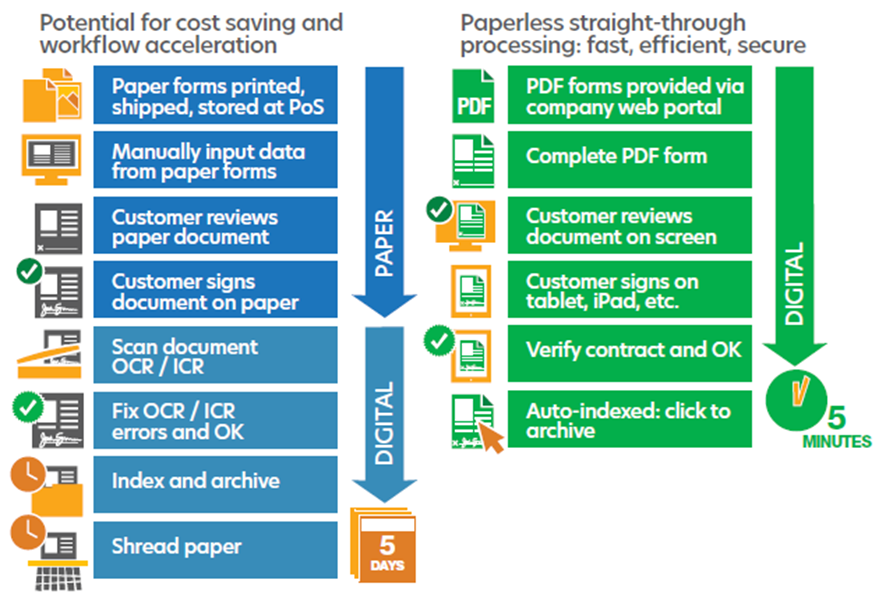
Kofax SignDoc is an essential component in digital transformation. Electronic signatures are crucial to achieving complete end-to-end digital processes and digital transformation, because they eliminate that final, paper-based step. Customers are delighted with the option to sign anywhere, anytime and consider this option to be a significant improvement in their engagement with an organization. Organizations benefit from using end-to-end digital business processes that save them time and money, increase process security, and free their employees from having to perform time-consuming paper-based processes, allowing them to spend more time focusing on customer service. View DataSheet

Hidden Menu 12
How to convert jpg to pdf There are many situations in which your business may need to work with a JPG file. For example, you may capture an image of a paper document with your mobile device, saving it as a JPG. However, that file format is not secure, and it’s possible that those who receive the file may edit or otherwise cause problems with your file. Further, your clients or contractors may require that you submit all documents in PDF format. In every case, you’ll need to convert the JPG file to a PDF format, and that’s not easy using legacy technology or programs natively available in Apple or Windows computers. Fortunately, Kofax Power PDF offers an elegant, simple solution to your needs. Below, we review the simple process to convert any JPG to PDF. Once you succeed with that process, Power PDF also lets you save the PDF to any other format your business requires. How to convert jpg to pdf with power pdf A Step-by-Step Guide to Converting JPG to PDF with Power PDF The process to turn your JPG into a highly secured PDF file with Power PDF is uncomplicated. Essentially, it’s as easy as saving the file you desire in the format you would prefer: Open Power PDF. Select ‘File’, then ‘Open All Files’ and choose the JPG to wish to convert. Power PDF converts the JPG to PDF. Choose your file location and click ‘Save’. Putting power pdf to work for you Power PDF is one of the most powerful, dynamic pieces of software ever produced for file-converting needs. It compares favourably to any other PDF reader and editor, including Adobe Acrobat, while still offering significantly more features than you’ll find elsewhere. Once you’ve converted your JPG to a PDF, then Power PDF can do amazing things from that point. Here are a few of the situations where converting a JPG to PDF can help your business succeed: Your company receives images from clients. Sometimes, you receive dozens or hundreds of images from a client, several of which require text editing. Further, you have many clients, so maintaining a complicated file tree can become unwieldy. With Power PDF, you can combine each client’s set of pictures into a single PDF for ease of use and communication. Your team works with many documents that require a quick turnaround time. Unfortunately, you can only collect the documents remotely and don’t have a portable scanner. The possibilities are endless, and Power PDF is at your service. Do anything and everything you need, safely and securely. With PDF, you can convert, edit, protect, and share PDFs between your whole team and with all your clients.
Hidden Menu 13
How to create pdf to excel Despite the incredible power and impact that digital technologies have, businesses often need specific or niche features that aren’t always so common. One such instance is the need to convert PDF files into the Microsoft Excel format. Excel is a powerful tool to process and manipulate data, but it needs the correct input. There is a solution, however, in Kofax Power PDF. Our robust software can take virtually any file format and convert it to almost any other format you need. When you have cumbersome PDFs and need to extract the data from it while still retaining any formatting or organization of the data, there’s no better tool for your business than Power PDF. How to convert pdfs to excel format with power pdf A Step-by-Step Guide to Converting PDF to Excel with Power PDF As with all Power PDF’s features, it’s remarkably simple to use it to convert the files you need to any other format. Here’s the process you’ll use: Open the PDF in Power PDF. Click on the ‘File’ menu. Select ‘Save As’. Choose the location for your new file. Select “Excel Spreadsheet” under the file type. Click ‘Save’. You’re set, Power PDF will generate the Excel spreadsheet you were looking for, and your team can immediately get to work. How power pdf simplifies your work We’re pleased with the many convenient ways in which Power PDF helps business in many industries. Consider some of the power that we help you unlock when it comes to turning PDFs into Excel spreadsheets: Often, a scanned PDF will have far more information than you need. If you know that you only require a portion of the document or several pages, you can select only what you need, and Power PDF will precisely convert only that part of the information. This ability is profoundly helpful if you are reviewing or converting historical documents or corporate records from before the 21st century. You can easily convert files from wherever you’re working with them. Specifically, you can right-click on the file in Windows File Explorer and convert there.. Let us help your business succeed in the modern business world. You need every edge you can get when it comes to data manipulation. Increase your team’s productivity without increasing payroll costs by improving efficiency. With Power PDF, you can say goodbye to time-consuming data re-entry scenarios and let your employees spend their valuable time on the more essential work you need them to complete.
Hidden Menu 14
How to convert pdf to powerpoint It’s one thing to have all the information you need, but it’s another to present it in a way that works for your audience. Sometimes, however, you find the information exactly how you need it, but in a PDF format. One thing the PDF format cannot do (yet) is to animate the content so that the information is only displayed when the presenter desires. Thus, you need to make some changes. As you know, Microsoft PowerPoint offers presenters helpful tools for controlling exactly when information appears, and in what order. Often, presenters deliver a dynamic presentation that hits the mark, and generally, they’ll use PowerPoint to make that happen. You’ve certainly seen the results, but still, have the problem of getting the information you have into an easy-to-edit PowerPoint format for your presentations. This is where Kofax Power PDF enters the picture. We give you the power tool necessary for converting PDFs into PowerPoint presentations. From there, you can expertly control when the information appears so that your presenters can make a big impact on your audience. Read through the simple process to convert such documents. A Step-by-Step Guide to Converting PDFs to PowerPoint with Power PDF You’ll be amazed at how simple it is to convert documents into presentations with the help of Power PDF: Open Power PDF. Open the PDF file that you want to convert. Select ‘PowerPoint Presentation’ in the Home section of the navigation ribbon. Select the location to save your new presentation. Click ‘OK’ to save the new file. With little more than a few clicks, you’re successfully converting PDFs into PowerPoint presentations. What’s more, you have retained all the formatting, tables, and data in its various locations. Power PDF faithfully converts the data and any other relevant information that you need to preserve. The many ways that power pdf can simplify your work Consider the many instances you’ve found PDFs that contain the information you need to present. Whether they are internal documents that your company has previously produced, or they are documents submitted by your clients, you’ll still need to work with the information contained therein. If those you work with have already painstakingly arranged the information in the most suitable layout, it’s wasteful to expend valuable employee time replicating it manually. Instead, use Power PDF technology for converting PDFs to any format you desire. Thus, we can help you turn that PDF starting-point into a PowerPoint presentation that only needs to be animated. This technology can save your company and your team dozens of hours every time you need a presentation. You’ll have the capacity for converting PDFs securely on your computer and servers. There’s simply no need to upload documents to a third-party cloud where your data may be vulnerable. We can help whether you need to convert complex layouts without losing any formatting or simply retain text boxes in the correct locations. Our software is designed to help your staff by converting PDFs to PowerPoint, Excel, Word, and more. Let Power PDF put you in command of the data you in any format you require.
Hidden Menu 15
How to edit pdfs with power pdf Today’s business world sees professionals from all industries work with PDF documents. Often, those documents need to be signed, but the process of printing them out, signing them, and sending scanned copies where they need to go is too time-consuming. Instead, businesses need a way to review, edit, sign, and create PDFs that happens almost instantly. Kofax Power PDF provides these benefits, as it empowers your employees to create and share information using PDFs securely. We designed this program to plug into your business easily. Your employees can learn how to use it immediately thanks to the intuitive design of all the features. Below, we review the uncomplicated method your employees will use to edit PDFs with Power PDF. The Simple Step-by-Step Process to Edit PDFs with Power PDF It’s astoundingly easy to edit PDFs with Power PDF: Open the PDF you’d like to edit in Power PDF Select the “Edit Text” or “Edit Object” option under “Edit” on the Ribbon for text and images or illustrations respectively Double click on the text or object you’d like to edit Immediately, you’ll be able to edit any text or any object on your PDF. After you’ve used Power PDF to make your edits, you’ll be wondering why it wasn’t this easy to edit PDFs before. How power pdf helps you with pdf editing Despite the simplicity of the steps above, you wield a lot of power and flexibility when you edit PDFs with Power PDF. As mentioned above, you can revise any text, anywhere on the document. Here are several ways that Power PDF can help you with PDF editing: If you have physical copies of documents and need to copy the information before editing it, Power PDF can help you. Previously, you’d have to retype the text in from the original document manually, then make all your changes in a word processor. Now, with Power PDF, you can scan the document as a PDF and immediately begin typing to make your changes. Even though Power PDF gives you features you won’t find in the Microsoft Office Suite, your staff will find it a familiar product. The user-friendly design incorporates the design choices behind Microsoft products such as the Ribbon so that your team will be using Power PDF like professionals within minutes. We’ve worked hard to design software that serves businesses’ needs. Ultimately, when you work with Power PDF, you’re using an affordable tool that has the power and flexibility you need to edit PDFs and other documents safely. Select the version of Power PDF that’s best suited to your business, whether you’re just getting started or have dozens of employees working with documents on a daily basis.
How to use kofax
How to use Kofax Power PDF No matter what your company does, Power PDF can help you succeed. Let your team focus on the work you hired them to do. Meanwhile, our software permit them to work with the data in any format that makes sense for your business. Convert JPG to PDF There are situations in which your business may need to work with a JPG file. For example, you may seize an image of a paper document with your mobile device, saving it as a JPG. However, that file format is not safe, and it’s possible that those who receive the file may edit or otherwise cause problems with your file. Convert PDFs to Excel Despite the strained power and collision that digital technologies have, businesses often need specific or niche features that aren’t always so common. One such case is the need to convert PDF files into the Microsoft Excel format. Excel is a powerful tool to process and manipulate data, but it needs the correct input. Converting PDFs to PowerPoint It’s one thing to have all the information you need, but it’s another to present it in a way that works for your audience. Sometimes, however, you find the information exactly how you need it, but in a PDF format. One thing the PDF format cannot do (yet) is to animate the content so that the information is only displayed when the presenter desires. Thus, you need to make some changes. Converting PDFs to Word Historically, people have turned to PDF formats to protect their documents from being edited in word processors. This approach makes sense in a world where the data doesn’t change, but in your business, that’s not the case. Every day, you need to ensure that the information you work with is up-to-date as the circumstances change. The same goes for your user manuals, employee guidebooks, and client documents. Edit PDFs with Power PDF Today’s business world sees professionals from all industries work with PDF documents. Often, those documents need to be signed, but the process of printing them out, signing them, and sending scanned copies where they need to go is too time-consuming. Instead, businesses need a way to review, edit, sign, and create PDFs that happens almost instantly. Kofax Power PDF provides these benefits, as it empowers your employees to create and share information using PDFs securely. Create an E-Signature with Kofax Power PDF Modern organizations need the perfect blend of speed and security when completing business transactions. Just as in the past, you may operate under the assumption that you still need hand-signed documents from your clients and team members. In many cases, you can use digital versions of these documents, but require a PDF editor that empowers you to produce handwritten signatures that are backed by a certified digital identity. Create and Manage PDF Security with Power PDF Historically, the only way to protect PDFs has been to lock them with a password. While this is sufficient in some settings, it is not enough for industries that need to maintain the highest degree of security. Kofax Power PDF allows you to take a simple password approach or to use a more robust means of managing your PDF security. Create fillable PDF form Many businesses maintain various forms for employees, clients, and vendors. PDF documents are excellent resources to help you get these forms where they need to go. However, if you leave them as-is, these documents can delay your procedures or cause annoyance for the recipients. Kofax Power PDF can take any PDF and create a fillable form from it with a simple, intuitive process. Create tables and bookmarks in PDFs When you combine multiple files into a single PDF that PDF often contains a lot of information that may be difficult to search through. Alternatively, your clients or vendors may give you a large PDF that lacks a table of contents. This difficulty is most common in situations with forms or terms repeated throughout a document. Merge or Split PDFs with Kofax Power PDF Many projects go through repeated changes throughout development. As your team collaborates on their objectives, they often produce and work on multiple PDFs. Ultimately, the final results must incorporate each of the PDFs that make up the final project documents.