
Term Licensing
[row] [grid 6] Let’s get started on your upgrade process to Tungsten Power PDF 5 for your organization. To have an account manager reach out with a quote and instructions, simply fill out the form on this page. If you have an active maintenance plan with Tungsten Automation for your Power PDF Business Volume (Enterprise) licenses, your upgrade is free! We built Tungsten Power PDF Busiess Volume (for Enterprise) specifically to fit the needs of large and growing organizations like yours. Our solution makes it easy for you to create, edit and assemble documents across any platform or device, enabling internal and external workflow continuity. Improve your document processes and reclaim valuable time in every workday. Get a customized quote and cost comparison. Improved benefits with new Power PDF 5 Works like Office desktop products, so it’s easy to learn Meets simple to complex needs, enabling standardization on a single tool Includes industry standards for encryption, redaction and more Supports lossless PDF/A-4 archiving Fuzzy search helps uncover typos, incomplete information and non-exact matches of your query Browser extensions for Google Chrome and Microsoft Edge to open and create PDFs Fully integrated Tungsten SignDoc e-signature tools with no web components Power PDF Mobile app to stay connected wherever you go. Built-in bookmarks and e-signature Works across devices and platforms and allows easy sharing of documents in the cloud PC System Requirements Supported operating systems:Windows Server 2008 R2 with SP1, 2012 R2, 2016 (Citrix, AD, WTS).1 GB of memory (RAM), 2 GB recommended. Windows 8.1; 32-bit and 64-bit Editions, Windows 10; 32-bit and 64-bit Editions, Windows 11; 32-bit and 64-bit Edition 1.5 GB of free hard disk space for application files; additional space required for temporary installer files and for additional user interface languages. Web access needed for product registration, activation, product help and obtaining live updates for the program. Microsoft .NET Framework 4.5.If it is not detected, it installs with the product. [/grid] [grid 6] { BreezingForms : Term_Licensing} [/grid] [/row]
SignDoc
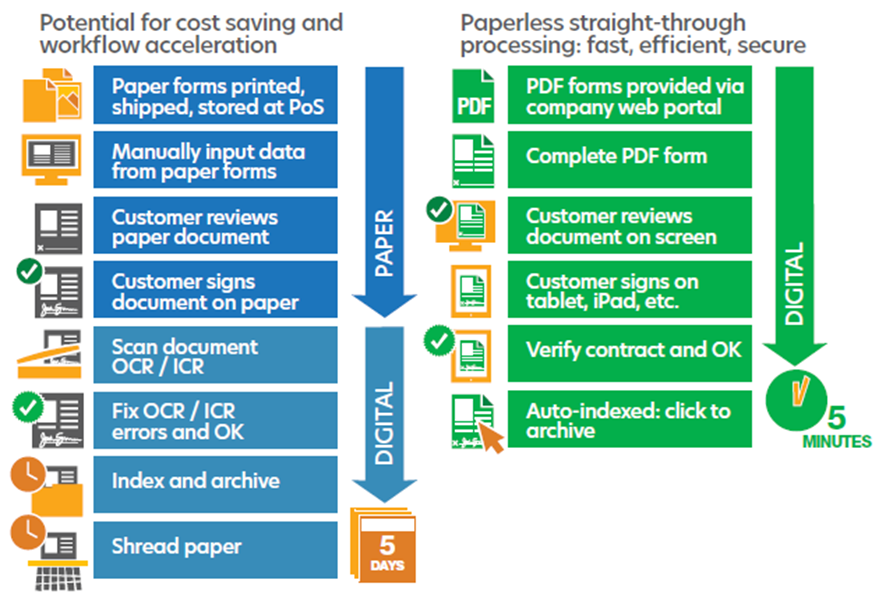
Kofax SignDoc is an essential component in digital transformation. Electronic signatures are crucial to achieving complete end-to-end digital processes and digital transformation, because they eliminate that final, paper-based step. Customers are delighted with the option to sign anywhere, anytime and consider this option to be a significant improvement in their engagement with an organization. Organizations benefit from using end-to-end digital business processes that save them time and money, increase process security, and free their employees from having to perform time-consuming paper-based processes, allowing them to spend more time focusing on customer service. View DataSheet

Hidden Menu 06
I am taking trial How do I take a trial? You can sign up for a free 15-day trial by selecting the product you would like to try: Power PDF Advanced for Windows Power PDF Standard for Windows Power PDF Standard for Mac How long does the free trial last? Your free trial will lasts for 15 days, then you need to purchase a license to continue using the software Is the trial software the same as the full license? Yes, all functionality and features are available to trial users, the only limitation is the 15-day duration. Can I extend the trial duration? No, a trial can only be installed once on any machine given. Once the trial ends, there is no way to extend the duration or reinstall it on your machine. Do I need to give you a credit card? No, the Power PDF trial is completely free to use. If you decide you want to purchase a license, then you can order at that time. I’m having trouble with the installation, what do I do? While downloading and installing your trial, please make sure to turn off anti-virus software. Some programs will block download or incorrectly flag the Power PDF .exe file as a virus. You’ll also want to make sure you have enough storage on your computer. I downloaded a Kofax Power PDF trial and entered my serial, but it doesn’t work. What do I need to do? Serial numbers are given for each version and edition of the software. So if you have downloaded Kofax 3.1 trial and re-attempted to apply serial number from an older Power PDF version you bought in the past, it will not work. Your choice is to buy a new license for the latest version. Fortunately, since you have an older serial number, you will be eligible for an upgrade discount. Please contact support or engage with a chat rep on any of the Power PDF pages with your serial number to get your discount code. How do I take the Mac trial? Once you installed the Power PDF Standard for Mac software, click the “Demo” button on the restart screen to continue your trial. You do not need to enter a serial number until you purchase one. Is Power PDF a subscription? Power PDF is a perpetual license, which means that once you buy a license, you own it forever. There are no additional monthly or annual fees if you purchase an individual license. For volume licenses, you have the option for an annual maintenance package, which includes all updates and upgrades, as well as extended tech support. Is Kofax Power PDF 3.1 compatible with Windows 10? Yes it is, and the software is fully integrated into Office 365, so you can utilize the features of Power PDF from within your favorite Office apps including Word, PowerPoint and Excel.
Hidden Menu 07
Buying Power PDF individual licenses What Power PDF versions are compatible with Windows 10? Nuance Power PDF 3.0 and Kofax Power PDF 3.1 are both compatible with Windows 10 and Office 365. If you have an older version of Power PDF, and upgraded Windows to v10, you may want to consider an upgrade. Please contact a support or chat rep on any Power PDF with your serial number to get a discount code. Why are the latest Kofax products so expensive, when I can find them online for much cheaper? The Kofax Power PDF, PaperPort and OmniPage prices actually have not changed from retail prices that Nuance was charging. Products found on other websites are usually clearance inventory of older Nuance versions. Can I install Power PDF Advanced on a Mac? Power PDF Advanced is for Windows, while we do have Power PDF Standard for Mac that is developed specifically for Mac OS. What is the support policy? Kofax offers a 90-day product support warranty from date of purchase on all desktop products, including Power PDF, PaperPort and OmniPage. This covers installation, setup, configuration and reinstallation of software during this period. There is also limited support available beyond 90 days. You can learn more about available coverage here.
Hidden Menu 08
Enterprise and Volume Licensing How do we renew an expiring Maintenance & Support contract? To renew, please send an email request to powerpdf@icons.net.in and a representative will follow up with you. How do we redownload and reinstall our software? You can access your Power PDF Enterprise volume license software through Kofax Electronic Fulfillment at https://www.powerpdf.co.in/. If you have issues, please open a ticket with ICON Support Team to have a new login assigned. Please note, this does NOT apply to individual licenses you purchased from any official authorised ICONS Infocom reseller partner, and you will not be able to setup an account here. What do we need to do to add more users to our Enterprise volume license? To add more users to your volume license plan, please send a request to powerpdf@icons.net.in and a representative will follow up with you. We have multiple servers for load balancing. Would we need separate licenses for each server? The good news is that Power PDF Enterprise volume licensing is by the number of users, not number of servers. You can install in as many locations as you choose, as long as you remain at or below the licensed number of users.
Hidden Menu 09
How to Batch combine PDF How to Batch Combine and Edit Documents with Kofax Power PDF It’s not uncommon that you’ll need to include several distinct kinds of documents into a single PDF file. Indeed, you will often need multiple formats of files as you assemble documents such as user manuals, employee handbooks, and corporate board meeting agendas. Previously, you had to use various programs to combine these disparate file formats. Your staff would spend excessive amounts of time navigating multiple progra ms and unwieldy controls only to produce a creation that still needed some attention. That’s not the case anymore, as you can easily combine and edit documents with the Kofax Power PDF editor and creator. Beyond simplifying the process of creating PDF files from single-source documents, Power PDF empowers you and your employees to combine multiple files into a single PDF complete with a table of contents. The Step-by-Step Process to Batch Combine PDF Files? You can unlock the tremendous power of Power PDF immediately. When you use the helpful Create PDF Assistant, your team can create PDFs in batch with variable settings so that you can control the compression, security, and compatibility of the product. Use the following steps to take advantage of the batch combine feature: Open the “Create PDF Assistant”, which you’ll find as an option under the Power PDF Standard or Advanced program group in the Windows Start Menu. After the “Create Assistant” window appears, click the “Add” button and select the files that you’d like to work with. If you need to combine files from multiple locations, simply repeat Step 2 as many times as you require. Once you have all the files you’d like to combine, select “Create a PDF for each input document” from the first dropdown list. This action will produce individual PDF files for each of the source documents. Alternatively, you can combine the files into a single PDF by selecting “Combine files into one PDF document”. You can either leave the saving folder as the default location or choose a different one by clicking the “Saving” button. Click the “PDF Create” button on the bottom of the window to convert the files into PDF document(s) according to the options that you have selected. As your team becomes familiar with Power PDF, this process will become second nature. You can even choose to apply security settings to the newly created PDF documents. Right out of the box, Power PDF offers easy-to-use tools for your business that helps your team to benefit by quickly generating and combining PDF documents. How power pdf can benefit your business? To recap the main ways that Power PDF can assist you with PDF batching and conversion: Your team can batch-create multiple PDFs without opening each individual document. Instead, they can directly create as many PDFs as they need to from numerous documents in various locations. Similarly, they can take existing PDFs and convert multiple files into Microsoft Office formats, such as those that Word and Excel use. Your team can also combine multiple PDFs, or convert multiple Office Suite files, into a single PDF. The entire process can be automated for repetitive workflows by using Power PDF’s Watched Folder feature.
Hidden Menu 10
How to Create fillable PDF Form How to Create Fillable PDF Forms with Kofax Power PDF Many businesses maintain various forms for employees, clients, and vendors. PDF documents are excellent resources to help you get these forms where they need to go. Kofax Power PDF can take any PDF and create a fillable form from it with a simple, intuitive process. The Step-by-Step Guide to Creating a Fillable PDF Form It’s easy to use Power PDF to turn any PDF into a fillable form. Use the following steps to create a convenient form for any recipient: Open Power PDF and scan in a form on paper, take an existing form-styled PDF, or start with a Microsoft Word or Excel file. Select “FormTyper” from the “Forms” Menu Ribbon. Power PDF will automatically find the individual form fields that your document will need. You can edit the form to add or subtract form fields. Alternatively, you can edit the kind of acceptable input that the recipient can provide (such as text, numbers, radio buttons, or checkboxes). Optionally add an Action Button that allows users to submit the PDF form electronically to a web URL or e-mail address. Select your location and save the fillable PDF form. Once you’ve completed these steps, you need only to send the PDF to your intended recipients or upload it to your website. Putting fillable pdf forms to use for your business With Power PDF, you can customize your forms in several ways. If you need to update the initial PDF before you turn it into a form, you can easily make changes directly in Power PDF. Then, when you convert it to a fillable PDF form, you can design the fields exactly how you’d like. Here are some of the ways that your business can use fillable PDFs to streamline your processes: Create registration forms for classes, seminars, conferences, and more. You can designate fields for medical information, emergency contact, dietary restrictions, and class signups. Generate order forms for your clients to use. With fillable forms, they can enter their order information directly into the PDF rather than printing out a copy, filling it out by hand, and scanning it back into the computer. Combine all your employee on boarding documents into an easy digital format. Have them complete questionnaires and tax documents or sign off that they have received your employee handbook. Then, you can digitally retain these documents without cluttering up your Human Resources workspace. Design helpful customer surveys so that you can hear genuine feedback regarding your staff and business processes. Make it easy for your customers to report the areas of your business that they find easiest to work with – and those that you should consider improving.